
| Topic | Building the Ultimate Modern Ham Shack (Part 3 of 4 Articles) |
| Subtopic | Prepare and Setup your WallBoard PC |
| Equipment Required | Computer + Internet |
| Costs | Nothing if you have a few Older PC’s hanging around or you can get your hands on |
| Document last reviewed and updated (reviewed each year) | 1st November 2026 – Release of Article – (note awaiting final technical review) |
Important : If you landed on this page via your favourite search engine, as this is a multipage article, you might want to start here – https://www.vkhamradio.com/the-ultimate-modern-ham-shack-overview-and-concept/
| Device | Workstation Name | Login Name | IP Address (will depend on your network |
|---|---|---|---|
| HamShackPC | HamShackPC | HamShackPC | 192.168.1.201 (example) or x.x.x.201*Static* |
| WallDisplayPC | WallDisplayPC | WallDisplayPC | 192.168.1.202 (Static) or x.x.x.202 *Static* |
| DesktopPC | Your Choice | Your Choice | DHCP or Static |
| HamShackLaptop | Your Choice | Your Choice | DHCP or Static |
| HamTablet | Your Choice | Your Choice | DHCP or Static |
This particular article will assume you have already read the associated previous article on setup of the HamShackPC, as some of the information in this article assumes that you have read that article for background.
We are now going to complete the base setup of what will be your main Wall Display PC (WallBoardPC) for your Ham Shack. This PC will be connected to a large monitor in your shack or even a TV Style Monitor which are very cheap nowadays, and do not need the highest resolution or frame rates.
As previously mentioned, we will be installing Linux Mint LMDE on this PC, and running through the almost identical procedure. The main difference is the PC names, IP addresses, and of course the differences in the commands, particularly around the login names
After the Linux Mint Install
We are going to accomplish 5 final Mint Linux tasks
- Assign a Static IP address
- Install and setup the X11VNC software to allow you remote access
- Setup TimeShift (basically scheduled system backup and a system restore tool – great if you are still learning Linux)
- Keeping your Mint Linux system updated
When you finish building your Linux Mint system, it is connected to your network, but it is using a DHCP address by default. You generally do not know this address, and DHCP addresses can change, they are not static, although it sometimes appears that way, but can be affected by PC reboots, reboots of your internet router etc. So we are going to set a static LAN IP address.
Assigning a static LAN address
So using the GUI, perform the following steps
- Click on the Main Mint Menu
- In the Search Box – type Network
- It will no show apps installed on the PC – click on Network

Just before we move on to the configuring the network, I want to point out (for brevity and speed) that I will use this wording many times in these articles. So next time I might keep it short and say
Click on the Mint Menu, in the search bar, search for Network, and select Network and only if necessary, I will not support it with a picture unless it is ambigous or not clear
Anyhow you have now clicked on Network and the following screen has appeared.
Yours may be different as this machine is running on a Wireless connection, but you will have similar screen if you are running on a Wired Connection. Either way, you need to locate the “cog” which is the setttings
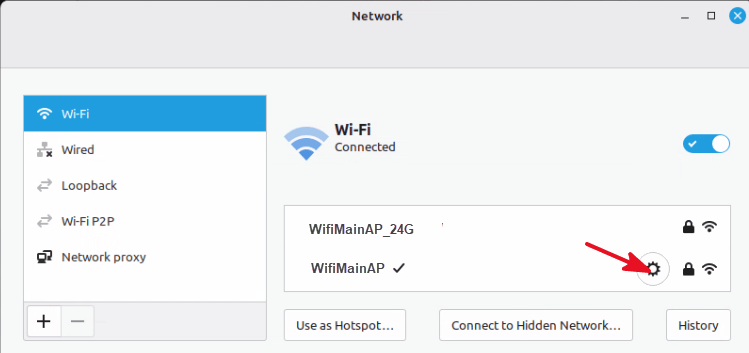
The next screen will appear and we need to note down a few details

- This is the current network address of your WallBoardPC
- This is the IP Address of your network router (it generally will always be this address)
- This is the DNS Address. In most cases it is pointed to your router, but sometimes it will have additional addresses
You should note down 2 and 3, and you should confirm what network addressing your current network is using. So based on (1), the address scheme of this network is 192.168.1.x. You may find yours is different.
4) Now click on IPv4 and we are going to set this machine with a Static LAN address

- Click on this and set to Manual (this will dynamically change the look and entries of this box)
- This address is a combination of your network address range, plus the 202 we recommended for this workstation
- For most home networks, this is the netmask, so enter 255.255.255.0
- This is the IP address your network router (which we got from the previous screen)
- This is the DNS Server IP address (or addresses) that we got from the previous screen. Normally the DNS using just your router address will suffice. But if you want to add more, you will see a + button where you can add more
- Click on Apply
Now reboot your system
Now go back into the Network configuration tool by clicking on the Mint Menu, in the search bar, search for Network, and select Network
- Click on the “cog” again, and you should see a summary of your Network settings you just set.
- Open a Browser on this workstation and make sure you can get to a Web page (just to make sure everything is working)
That’s it, you have now configured a workstation to have a static IP address on your LAN
Install and Setup SSH
This is more of an convenience, allowing us to connect via Putty to the HamShackPC if we need it or want to.
sudo apt update
sudo apt install openssh-server -y
sudo systemctl enable ssh
sudo systemctl start ssh
This is because SSH Server is not installed by default on Linux Mint LMDE. Once you have completed these steps, you wil now be able to login via Putty if needed.
Install and setup the X11VNC software
Why do we want the X11VNC software?
What it it does is that it gives us the ability to remote control the WallBoardPC from anywhere on the local network, without having to be right in front of it. You most likely had another computer in the house or shack that has a comfortable chair and big monitors, nice keyboard, that you feel more comfortable at, especially whilst configuring a PC. I know I do. However many of the remote access tools leave a lot to be desired, or switch from the “free” model and start charging, or are heavily aimed at connectivity from outside (with it’s inherent security risks). We just want to tool that we can use on our own network.
Yes, the X11VNC is getting quite old, and only supports 8 character passwords. It will most likely be replaced in the future with the introduction of Wayland as the default Windowing handler in Linux Mint (but is not yet). I won’t go into detail as again another topic that needs a big discussion. For the moment, X11 is stable, and to a certain degree, Wayland is stable, but is still waiting for application developers to catch up. For that reason we will stick with X11 based remote control to keep things simple. If that has to change, it will be reasonably quick to switch out this section.
Now the install of this software can either be done in the terminal screen of the WallBoardPC or you can SSH to your WallBoardPC and install it remotely. Whatever you feel comfortable with, but these commands are done at the terminal level
First of all perform this command in the terminal screen
sudo apt update && sudo apt install x11vnc
What this does is refresh your local list of available software packages and their versions AND it installs the x11vnc app onto your WallBoardPC.
Next type these commands in the terminal screen
sudo x11vnc -storepasswd /etc/x11vnc.pass
After this line, it will ask you to provide a password. This password is limited to 8 alphanumeric characters, so make a it good one e.g. P*dF#2!p (record this somewhere as your VNC Password)
sudo chown wallboardpc:wallboardpc /etc/x11vnc.pass
sudo chmod 600 /etc/x11vnc.pass
After this we need to correct some permissions, which the two lines above complete.
*** Now in the above lines, the place where wallboardpc is used, is the username for this PC. So if yours is different, you need use it instead of wallboardpc in the lines above ***
We now need to set it up so that the X11vnc server starts up as a service at boot time, so we need create/edit a file
sudo nano /etc/systemd/system/x11vnc.service
add these (or replace) these contents
[Unit]
Description=VNC Server for X11
Requires=display-manager.service
After=display-manager.service network.target
[Service]
Type=simple
User=wallboardpc
Environment=DISPLAY=:0
Environment=XAUTHORITY=/home/wallboardpc/.Xauthority
ExecStart=/usr/bin/x11vnc -display :0 -auth /home/wallboardpc/.Xauthority -rfbauth /etc/x11vnc.pass -shared -noxdamage -loop
Restart=always
RestartSec=5
[Install]
WantedBy=multi-user.target
Save it
now issue the following commands
sudo systemctl daemon-reload
sudo systemctl enable x11vnc
At this point if you have had no errors reported, you can now reboot your WallBoardPC
I need to point out however, this X11VNC Service will only become active when you have manually logged on to the workstation at the machine.
The reason for this is that the console display (-display :0) is only initialised when you have logged in.
The idea of this remote desktop is mainly to perform testing, configuration, or updates etc from a more comfortable PC.
However, this WallboardPC is best setup so that it automatically logs in as soon as you power up the PC. As this is a kiosk style machine, you will generally not be interacting with it directly, and in most cases you will not have a keyboard and mouse attached permanently (remember this project was to reduce the clutter). If you need to interrogate further, you would do it from another browser (e.g. from your main home pc or from the hamshackpc), as this will allow you to drill down on SOTA spots, band conditions or whatever you primary interest is.
So we will setup auto-login, click on on the Mint Menu, in the search bar, search for Login Window, and select Login Window
The following screen will appear (after you click on the Users Tab)
Leave everything else as it is and put your username (1) and a 5 second delay (2)

No need to save, just click on the [X] in the top right of the Window and reboot your PC and check it autologs on
What ever method you choose, you are probably eager to test remote access, so you need a client (unless you already have one installed on your PC). Any VNC Client will do and this includes TigerVNC, RealVNC, TightVNC, UltraVNC, etc etc. However I personally use TigerVNC viewer, does exactly what I need.
Setup of TimeShift
This is a very useful tool, that comes with Linux Mint as standard. It is by no means the only backup tool, but it will provide some protection from updates that break the system, it will give you confidence especially on those more complex changes, or as you navigate Linux Mint for the first time.
Ideally, the best location for the backup is on an external drive, and if you have a few USB hard drives spare, then this is a better option. However, we are working on the basis that you do not have an external drive available at this moment, so we will use the hard drive that you have Linux Mint on and that you have enough space. You will be surprised how different the space that Linux takes up, compared to Windows initial install. Typically Linux Mint will take up 20Gb when first installed, so even the most basic of 256Gb drives will be enough to support a base backup and some judicially spaced/scheduled incremental backups and still not come close to filling it.
Remember the purpose of this backup is to be able to rollback, should something happen to the operating system or the apps on the system. Should we suffer a catastrophic hardware failure e.g. the hard drive, then the idea is that you wont bother to try and recover. It will be easier to rebuild the PC with the same set of instructions on a new hard drive or new hardware. Importantly any QSO logs are synced and can be resynced again once your PC is back up and running.
Anyhow we will now go quickly through Timeshift, open Timeshift by clicking on the Mint Menu, in the search bar, search for TimeShift, and select TimeShift
You will see the following screen

Click on Wizard which will open the next screen

Select RSync and click next

Now select Snapshot location, if you are using the PC hard drive, you only have one, however if you have an external formatted hard drive connected you should select this …now select Next
Now we are going to select when it performs these backups. This is generally the choices I make. In simple terms, I have 5 daily backups I can restore from, so if I recognise an issue that may have occured a few days ago, then I can restore back before that point. If I find an issue occurred past this time, I can at least go back to a backup from a month or two ago. You can chose what is best for you, but be aware selecting more than you really need, is going to require more disk space and monitoring of that space. Click on Next

This next screen by default shows that it will not include the /home/wallboardpc directory by default. However we are going to change that and include all files for the /home/wallboardpc directory.

If this was a home PC with all your documents, every download under the sun, then we would not do this as your diskspace would fill up even quicker, but this is not the case.
What we might have is some temporary ADIF exports, a few documents we have written. Again you can make this choice, but I personally would not exclude this directory.
Click on Next and you will get an information screen and now press the Finish button.
It will return you back to the main TimeShift screen as shown below

Now to complete and initiate the process, we click on CREATE, which will create the base full backup, and your system will update this with incremental backups as per your schedule.
It may take a little while. Great time for a cold beverage or tea/coffee before we move onto the next bit of house keeping
Keeping your Linux System Updated
This is a very important part of keeping your Linux system in good shape. The update process in Mint Linux is reasonably robust and generally very safe.
What I like about the update process employed in Linux Mint, is that I, as the user maintain control. I chose what updates I want, I chose when I install them. This is important to me.
Linux does not try and half install an update (which I did not request), and then forces you complete the install and reboot even though I am in the middle of something important. Can anyone guess what operating system I am talking about?
Anyhow, whilst Linux Mint updates do not force themselves onto you, it is good practice to do them regularly, when you are ready.
Now I suspect that you have already done some already after looking around your system, but if not, then you have probably seen the shield icon in the task bar, usually showing an Orange dot on it, like the image below

This means that you have updates available that need to be installed. Click on this and it will show you the updates waiting to be installed

Now I have recently updated, so it is showing only one update, but if you have just finished your installation, it could have a lot.
What ever number you have, click on install updates. In general most are pre-ticked and all will install all the updates.
That’s it, it’s that simple. Generally I complete them each time I turn the system on, and it’s a good practice to get into. If you do find an update broke something that was working before, you have Timeshift which will let you go back to an earlier point. You get quite confident with doing updates.
That’s it, you have completed the base setup of the WallboardPC, now we will move onto the Software installation on your WallboardPC
Now we get to the business end of the Ultimate Ham Shack with the installation of the primary software onto your previously installed and prepared WallBoardPC.
Installing the software onto your WallBoardPC
Now a quick overview of the software that we will install onto your WallBoardPC.
- Chronalert
- Yep that is it – one piece of software
ChronAlert
Before we get into the installation, which is dead easy, we need to talk about this software selection. Propagation has always been a keen interest, a little in my Shortwave listening days (40 years ago), but more renewed in recent years with Amateur Radio, so tools, sites, books have always been of interest.
I have, over the last 6 years tried many software apps, websites, and other sources. Evidence of this is some of the articles on this site, on HamClock, OpenHamClock etc. particularly as Kiosk style displays or Wallboards, systems that give me instant or almost instant information, across a wide range of conditions such as close satellite passes, weather conditions, digital mode reach, space weather, Live SOTA, POTA, WWFF spots, etc.
Now all the systems I have tried, have had their shortfalls in one way or another, which have included
- Complicated installation (This does not include the browser based apps)
- Information that is not available on the one screen or panels taking too long to rotate
- Not able to be viewed on another screen if I wanted to drill down further on a topic.
- Ability to have different displays/panels/information on different devices e.g. whilst outside with the tablet, be able to have more satellite passes shown.
- Average use of graphics or poor use of Monitors/TV Displays (it is normally a centre piece in you shack – so you want it to be eye-popping if possible)
- Missing Key information e.g. PSK reporter integration, POTA/WWFF spots (or are only included in the paid version of the app)
- Not really suited to a WallBoard solution
Yes I have looked at an tried many of the modern ones that are out there, especially ones that have been around for the last year or so and this has included HamDash, DXChrono / DXLook, OpenHamClock. And to be fair, they are all close to the mark, especially DXChrono, but they each fall short in certain ways (especially as a Kiosk app).
The reasons I settled with ChronAlert (the free version)
- Ability to auto rotate the main map display (2), showing a close up of Australia for 30 seconds and the full world map for 30 seconds (and this is on the free version). Each with its own focus and panels/card views.
- You can change the time that the screen map display and panels stay online before it rotates.
- POTA/WWFF spots shown on the maps (Free Version)
- Reports PSK Reporter reports in a panel (Free Version)
- Reports PSK Report reports drawn on the map (Free Version)
- Satellite paths and overhead passes on your selected Satellites (Free version)
- Space Weather panels
- Weather / Cloud Cover on the map
- Thunderstorms/Lighting on the map as well as details in the panel
- Tropical Storms
- DXpeditions
- MUF Matrix
- NCDXF Beacons
- News Ticker running along the bottom
Now to be fair, what Chronalert is offering in the Free version will generally be enough for most Ham Shacks, and the developer has been extremely generous providing the basic features that a Ham Shack needs. I ran it for a few weeks and paid for the Pro Version which is a once off cost of $60AUD, which gives me even greater flexibility, and many more features, most I may not use, some I will.
- Ability to access ChronAlert from any other device (Tablet, Mobile, Smart TV, another PC), and have it display separate screen setups for that device (e.g. your tablet could be setup to just show your Satellite Information), whilst your Bedroom Smart TV(with browser), could show just the World screen with its customisable panels. Your WallBoardPC is your Web Server for all the other devices. Well worth the additional cost
- More “screens” (10)
- Meshtastic + MeshCore integration (connect by USB)
- QSO Map (logger arcs)
- Integrate Streaming Webcams
- APRS (via the internet), but can also come from (APRS RF, via KISS TCP with your own local radio decoder)
- Monitor Ships and Aircraft with an RTL-SDR Dongle
For the once off cost, it can really add some power to your Wallboard display, and it is a once off cost, and a good way to support the developer. I know as Hams, we try to get everything for free, but sometimes, it is worth it, and generally it will keep the product development going.
Installing ChronAlert
This is where Chronalert really shines on one the criteria – simple installation.
It too, comes as an appimage file, and was mentioned before with the Ham2K Power Logger, what you have downloaded is an appimage file, which is basically a binary, but not in the normal sense, it is a self-contained single-file format that lets you run software applications on Linux without needing to install them. It bundles the application along with all the libraries and dependencies it needs to work.
Now just using the GUI, move or copy the file to your desktop.
To make it run, all we need to do is the following (once you have it on the desktop)
- Right-click on the downloaded
.appimagefile and select Properties. - Navigate to the Permissions tab.
- Check the box that says “Allow executing file as program” (or change the execution drop-down to “Anyone”).
- Close the window and double-click the file to launch your app.
What you will see is the app start up.You are most welcome to look around, but we will come back to this later and discuss the main points of configuration later, including setting it up so that it starts on boot up.
One more thing, at this current time, you cannot update inside app, so if you get notice that an update is available, a little bit of work is required. So to update, you just need to download the latest appimage file, move it to the Desktop to replace the older file, re-mark it as “Allow Executing file has a Program” and you are now running the updated version. It could not be simpler. All of your settings and local database are retained, as these are stored on the WallBoardPC file system.
Again, all your settings will be preserved.
That is it, we will now move onto basic configuration including starting the WallBoard on boot in the next article

Comments