
| Topic | Building the Ultimate Modern Ham Shack (Part 2 of 4 Articles) |
| Subtopic | Prepare and Setup your HamShack PC |
| Equipment Required | Computer + Internet |
| Costs | Nothing if you have a few Older PC’s hanging around or you can get your hands on |
| Document last reviewed and updated (reviewed each year) | 1st November 2026 – Release of Article – (note awaiting final technical review) |
Important : If you landed on this page via your favourite search engine, as this is a multipage article, you might want to start here – https://www.vkhamradio.com/the-ultimate-modern-ham-shack-overview-and-concept/
| Device | Workstation Name | Login Name | IP Address (will depend on your network) |
|---|---|---|---|
| HamShackPC | HamShackPC | HamShackPC | 192.168.1.201 (example) or x.x.x.201*Static* |
| WallDisplayPC | WallDisplayPC | WallDisplayPC | 192.168.1.202 (Static) or x.x.x.202 *Static* |
| DesktopPC | Your Choice | Your Choice | DHCP or Static |
| HamShackLaptop | Your Choice | Your Choice | DHCP or Static |
| HamTablet | Your Choice | Your Choice | DHCP or Static |
We are going to start first with what will be your Primary PC (HamShackPC) for your Ham Shack. You might have another PC or Windows laptop in your shack, but this is the one where you will conduct a lot of your ham radio work from (maybe not all). This might include logging, FT8, Direwolf, control of your rig etc. This will be the radio that will connect to your rig, so this PC will be best placed near to your transceiver.
As previously mentioned, we will be installing Linux Mint LMDE on this PC. This guide will not show you how to install the basic Mint LMDE, as this will make this guide way too long, and to be honest, the install of Mint LMDE has been done by many other guides and videos which I will provide some links to. However, once you have done the basic install (which in 95% of cases will be a straight forward install), I will give you some guidelines on what to do next to complete the install, which includes remote control access, setup of scheduled full and incremental backups of the system, preparation of the power settings, how to perform updates (when you want to), installation of the remote control software. Basically everything ready to install the required software. If you are not experienced in installing Mint Linux LMDE, I can recommend this video https://www.youtube.com/watch?v=-F4xudabQcw. He gets the job done with a minimal of noise and does not go too far (e.g. setting things up past what we need). Just remember once you have started installing Mint, use the Workstation name and login names that we have in the table for the HamShackPC when it asks. You are welcome to set your own password (and should), but please record it. The password will not impact the scripts, but you will need it regularly. If an instruction requests you to enter your password I will mark it as {YourPassword}.
Whilst you are most welcome to choose your PC Names and logins, I fully recommend that you use the generic names I have used in this article and the other articles. The reason for this is that many of the scripts will be using these PC names/Login names. Now its not hard to change the scripts/commands and I will point out if you need to consider making the changes if you are using your own PC names and Logins.
One more thing, we are not concentrating on firewalling on the actual workstations/PC’s themselves. The PC firewall is off by default. One thing I am very strict about is making sure your network does have a Perimeter firewall. You may not have heard this term before, but it refers to a good quality firewall where you internet comes into premises. Now you are probably thinking that you have an Internet firewall that is supplied as part of your router provided by your internet provider, and you are not wrong. However, the quality and vulnerability of those ISP supplied routers are questionable. The internet is littered with news items on a particular brand of router/firewall from an ISP being compromised. I normally recommend a separate Firewall Appliance (look up google for that term), which gives you greater control and visibility. Again this is not within the scope of this article, but a very important point. I dont think it should stop you building your Ultimate Shack PC Network, but once you are all setup and working, my recommendation is to look into improving your network firewalling, which may include a separate Physical LAN or VLAN (for your shack).
Now whilst I have recommended following the guide for PC names and Login names (to avoid confusion with the scripts and commands), I recognise it is not going to be possible with the LAN IP addresses, as this is going to depend on your current addressing of network and what IP addresses you have not used already. To try and make it easier, I am recommending using some static LAN addresses that are most likely out of your normal range of DHCP addresses (as most routers set DHCP for x.x.x.50 to x.x.x.150 or 200, so we are going to start from 201 (but you should check those addresses are not in use or part of your networks DHCP scope.
After the Linux Mint Install
We are going to accomplish 5 final Linux Mint tasks
- Assign a Static IP address.
- Install and setup the X11VNC software to allow you remote access.
- Setup TimeShift (basically scheduled system backup and a system restore tool – great if you are still learning Linux).
- Keeping your Mint Linux system updated.
- Installing the required applications.
- Basic Configuration of the primary apps
When you finish building your Linux Mint system, it is connected to your network, but it is using a DHCP address by default. You generally do not know this address, and DHCP addresses can change, they are not static, although it sometimes appears that way, but can be affected by PC reboots, reboots of your internet router etc. So we are going to set a static LAN IP address.
Assigning a static LAN address
So using the GUI, perform the following steps
- Click on the Main Mint Menu
- In the Search Box – type Network
- It will no show apps installed on the PC – click on Network

Just before we move on to the configuring the network, I want to point out (for brevity and speed) that I will use this wording many times in these articles. So next time I might keep it short and say
Click on the Mint Menu, in the search bar, search for Network, and select Network. If feel it is ambiguous in what I am requesting I might support it with an image.
Anyhow you have now clicked on Network and the following screen has appeared.
Yours may be different as this machine is running on a Wireless connection, but you will have similar screen if you are running on a Wired Connection. Either way, you need to locate the “cog” which is the setttings
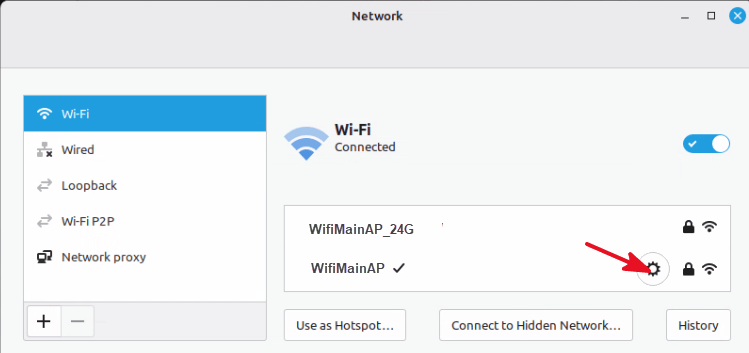
The next screen will appear and we need to note down a few details

- This is the current network address of your HamShackPC
- This is the IP Address of your network router (it generally will always be this address)
- This is the DNS Address. In most cases it is pointed to your router, but sometimes it will have additional addresses
You should note down 2 and 3, and you should confirm what network addressing your current network is using. So based on (1), the address scheme of this network is 192.168.1.x. You may find yours is different.
4) Now click on IPv4 and we are going to set this machine with a Static LAN address

- Click on this and set to Manual (this will dynamically change the look and entries of this box)
- This address is a combination of your network address range, plus the 201 we recommended for this workstation
- For most home networks, this is the netmask, so enter 255.255.255.0
- This is the IP address your network router (which we got from the previous screen)
- This is the DNS Server IP address (or addresses) that we got from the previous screen. Normally the DNS using just your router address will suffice. But if you want to add more, you will see a + button where you can add more
- Click on Apply
Now reboot your system
Now go back into the Network configuration tool by clicking on the Mint Menu, in the search bar, search for Network, and select Network
- Click on the “cog” again, and you should see a summary of your Network settings you just set.
- Open a Browser on this workstation and make sure you can get to a Web page (just to make sure everything is working)
That’s it, you have now configured a workstation to have a static IP address on your LAN
You need to get this setup, otherwise many functions will fail as it is based on having static addressing in place.
Install and Setup SSH
This is more of an convenience, allowing us to connect via Putty to the HamShackPC if we need it or want to.
Now these commands are done at the terminal level, which means locating the terminal program and opening this. If you can’t find it easily, just click on the Mint Menu, in the search bar, search for Terminal, and select Terminal
Now enter these commands :
sudo apt update
sudo apt install openssh-server -y
sudo systemctl enable ssh
sudo systemctl start ssh
This is because SSH Server is not installed by default on Linux Mint LMDE. Once you have completed these steps, you wil now be able to login via Putty if needed or preferred
Installation and setup the X11VNC software
Why do we want the X11VNC software?
Why don’t you install Tight VNC?
What don’t you use XRDP?
Its the usual questions, and very put simply, X11VNC is the best software if we are wanting to control the actual physical screen remotely, particularly on X11 enabled systems.
What it does is that it gives us the ability to remote control the HamShackPC from anywhere on the local network, without having to be right in front of it. You most likely had another computer in the house or shack that has a comfortable chair and big monitors, nice keyboard, that you feel more comfortable at, especially whilst configuring a PC. I know I do. However many of the remote access tools leave a lot to be desired, or switch from the “free” model and start charging, or are heavily aimed at connectivity from outside (with it’s inherent security risks). We just want to tool that we can use on our own network.
Yes, the X11VNC is getting quite old, and only supports 8 character passwords. It will most likely be replaced in the future with the introduction of Wayland as the default Windowing handler in Linux Mint (but is not yet). I won’t go into detail as again it is another topic that needs a big discussion. For the moment, X11 is stable, and to a certain degree, Wayland is stable, but is still waiting for applications to catch up. For that reason we will stick with X11 based remote control to keep things simple. If that has to change, it will be reasonably quick to switch out this section.
Now the install of this software can either be done in the terminal screen of the HamShackPC or you can SSH to your HamShackPC and install it remotely. Whatever you feel comfortable with, but these commands are done at the terminal level
First of all perform this command in the terminal screen
sudo apt update && sudo apt install x11vnc
What this does is refresh your local list of available software packages and their versions AND it installs the x11vnc app onto your HamShackPC.Next type these commands in the terminal screen
sudo x11vnc -storepasswd /etc/x11vnc.pass
After this line, it will ask you to provide a password. This password is limited to 8 alphanumeric characters, so make a it good one e.g. P*dF#2!p (record this somewhere as your VNC Password)
sudo chown hamshackpc:hamshackpc /etc/x11vnc.pass
sudo chmod 600 /etc/x11vnc.pass
After this we need to correct some permissions, which the two lines above complete. *** Now in the above lines, the place where hamshackpc is used, is the username for this PC. So if yours is different, you need use it instead of hamshackpc in the lines above ***
We now need to set it up so that the X11vnc server starts up as a service at boot time, so we need create/edit a file
sudo nano /etc/systemd/system/x11vnc.service
add these (or replace) these contents
[Unit]
Description=VNC Server for X11
Requires=display-manager.service
After=display-manager.service network.target
[Service]
Type=simple
User=hamshackpc
Environment=DISPLAY=:0
Environment=XAUTHORITY=/home/hamshackpc/.Xauthority
ExecStart=/usr/bin/x11vnc -repeat -display :0 -auth /home/hamshackpc/.Xauthority -rfbauth /etc/x11vnc.pass -shared -noxdamage -loop
Restart=always
RestartSec=5
[Install] WantedBy=multi-user.target
Save it now issue the following commands
sudo systemctl daemon-reload
sudo systemctl enable x11vnc
At this point if you have had no errors reported, you can now reboot your HamShackPC I need to point out however, this X11VNC Service will only become active when you have manually logged on to the workstation at the machine. The reason for this is that the console display (-display :0) is only initialised when you have logged in.
The idea of this remote desktop is mainly to perform testing, configuration etc from a more comfortable PC.
Now one way around this is to have the HamShackPC automatically login, which means that X11VNC is available as soon as the PC is turned on.
Now for some, that is an absolute security sin to have it automatically login, but we are talking about your dedicated Ham Shack PC, not where you keep your email and personal documents.
I am assuming that your HamShack area has secure access as part of your responsibility in not allowing non-amateurs to access equipment 🙂
If you want to setup auto-login, click on on the Mint Menu, in the search bar, search for Login Window, and select Login Window (getting used to this nomenclature now??)
The following screen will appear (after you click on the Users Tab)
Leave everything else as it is and put your username (1) and a 5 second delay (2)

No need to save, just click on the [X] in the top right of the Window and reboot your PC and check it autologs on
What ever method you choose, you are probably eager to test remote access, so you need a client (unless you already have one installed on your PC). Any VNC Client will do and this includes TigerVNC, RealVNC, TightVNC, UltraVNC, etc etc. However I personally use TightVNC viewer, does exactly what I need.
Setup of TimeShift
This is a very useful tool, that comes with Linux Mint as standard. It is by no means the only backup tool, but it will provide some protection from updates that break the system, it will give you confidence especially on those more complex changes, or as you navigate Linux Mint for the first time.
Ideally, the best location for the backup is on an external drive, and if you have a few USB hard drives spare, then this is a better option. However, we are working on the basis that you do not have an external drive available at this moment, so we will use the hard drive that you have Linux Mint on and that you have enough space. You will be surprised how different the space that Linux takes up, compared to Windows initial install. Typically Linux Mint will take up 20Gb when first installed, so even the most basic of 256Gb drives will be enough to support a base backup and some judicially spaced/scheduled incremental backups and still not come close to filling it.
Remember the purpose of this backup is to be able to rollback, should something happen to the operating system or the apps on the system. Should we suffer a catastrophic hardware failure e.g. the hard drive, then the idea is that you wont bother to try and recover. It will be easier to rebuild the PC with the same set of instructions on a new hard drive or new hardware. Importantly any QSO logs are synced and can be resynced again once your PC is back up and running.
Anyhow we will now go quickly through Timeshift, open Timeshift by clicking on the Mint Menu, in the search bar, search for TimeShift, and select TimeShift
You will see the following screen

Click on Wizard which will open the next screen

Select RSync and click next

Now select Snapshot location, if you are using the PC hard drive, you only have one, however if you have an external formatted hard drive connected you should select this …now select Next
Now we are going to select when it performs these backups. This is generally the choices I make. In simple terms, I have 5 daily backups I can restore from, so if I recognise an issue that may have occured a few days ago, then I can restore back before that point. If I find an issue occurred past this time, I can at least go back to a backup from a month or two ago. You can chose what is best for you, but be aware selecting more than you really need, is going to require more disk space and monitoring of that space. Click on Next

This next screen by default shows that it will not include the /home/hamshackpc directory by default. However we are going to change that and include all files for the /home/hamshackpc directory.

If this was a home PC with all your documents, every download under the sun, then we would not do this as your diskspace would fill up even quicker, but this is not the case.
What we might have is some temporary ADIF exports, a few documents we have written. Again you can make this choice, but I personally would not exclude this directory.
Click on Next and you will get an information screen and now press the Finish button.
It will return you back to the main TimeShift screen as shown below

Now to complete and initiate the process, we click on CREATE, which will create the base full backup, and your system will update this with incremental backups as per your schedule.
It may take a little while. Great time for a cold beverage or tea/coffee before we move onto the next bit of house keeping
Keeping your Linux System Updated
This is a very important part of keeping your Linux system in good shape. The update process in Mint Linux is reasonably robust and generally very safe.
What I like about the update process employed in Linux Mint, is that I, as the user I maintain control. I chose what updates I want, I chose when I install them. This is important to me.
Linux does not try and half install an update (which I did not request), and then forces you complete the install and reboot even though I am in the middle of something important. Can anyone guess what operating system I am talking about?
Anyhow, whilst Linux Mint updates do not force themselves onto you, it is good practice to do them regularly, when you are ready.
Now I suspect that you have already done some already after looking around your system, but if not, then you have probably seen the shield icon in the task bar, usually showing an Orange dot on it, like the image below

This means that you have updates available that need to be installed. Click on this and it will show you the updates waiting to be installed

Now I have recently updated, so it is showing only one update, but if you have just finished your installation, you could have a lot.
What ever number you have, click on install updates. In general most are pre-ticked and all will install all the updates.
That’s it, it’s that simple. Generally I complete them each time I turn the system on, and it’s a good practice to get into. If you do find an update broke something that was working before, you have Timeshift which will let you go back to an earlier point. You get quite confident with doing updates.
That’s it, you have completed the base setup of the HamShackPC.
Application Installation on your HamShackPC
Now lets move onto the Software installation on your HamShackPC
Now we get to the business end of the Ultimate Ham Shack with the installation of the primary software onto your previously installed and prepared HamShackPC.
Now a quick overview of the software that we will install onto your HamShackPC.
- Ham2K Power logger
- We are going to install Andy’s Ham Linux Compilation as it has most of the basic Amateur Radio tools
Ham2K Power Logger
Now we hit the contencious part, and very well expected. When it comes to logging apps, everyone’s choices are different based on their needs. You have your die-hards who have been using a particular one since the dark-ages, and will not differ in their views, and you have others that have been burnt before changing QSO logging programs and don’t want to move again, and then you have the others who have been yearning for an application that makes sense.
In fact, I recommend reading the following article (if you have not read it yet) https://www.vkhamradio.com/logging-software-which-one-is-best/ as it will also provide some of the background to why certain choices have been made with the The Ultimate Ham Shack Setup. Click on the link and it will open in a separate tab if you want to read further without losing where you are up to.
I was a Log4OM guy for a long while, but about a year ago (after loss of a few years of logs – which was more likely my fault with synchronisation setup, not Log4OM), I started on a quest for a new QSO logging app, that would work on multiple platforms (e.g. not chaining me to a particular O/S).
Well, needless to say after searching for over a year (and testing each one), I was not enamoured by any recent apps, although I liked Ham2K Polo and it’s logging philosphy and design. However it failed the criteria at the time, which was being able to be run on all main O/S platforms, and Ham2K polo was only on Android and IOS.
So I heard that Sebastian the developer was going to develop the product for Windows and Linux, and have been following his development for some time now. Furthermore, it was going to include another important criteria I had in my search, which was a solid modern synchronisation across those various platforms that does not rely on your QRZ’s and LOTW and ClubQTH of the world, each with their own handling issues and other quirks, and the other great solution was that you were not tied down to the O/S to log your QSO’s, so if you perform most of your logging on a PC in your shack (with a nice big screen and keyboard) you can, if when you are out doing a POTA or SOTA or WWFF, and you want to use your Android Tablet or Phone, you can as it will sync back to the cloud and synchronise back to all your devices you use Ham2K power logger on. Even if you are out of Internet range on a SOTA, you can log the QSO’s on to your Android tablet, and as soon as you are in range of the internet, it will initiate the synchonisation to the cloud, so by the time you sit down at your main HamShack PC and log into the app, it will already have all your SOTA logs you just completed, ready to review and submit.
It fit the criteria which was
- Multi-platform (O/S) Supported
- Robust Synchronisation to the Cloud
- Supports offline Operation (for SOTA/POTA/WWFF)
- Supports Operation based logging – so you can log per SOTA location, POTA location, particular Contest, or General logging, and if I need to submit my logs for a particular contest in Cabrillo format, I can select that operation and export and upload – simple.
- Supports XMLRPC via Flrig or similar, reducing the amount of recording for each QSO, typically only needing to add the usual Readabilty and Signal report, every thing else was filled in.
- The Ham2K Power logger works on a privacy first model. You maintain and control who sees your logs and what logs. If you are a big user of those logging websites, you export your ADIF logs from Ham2K and upload them via their various mechanisms.
- The product is extensible via “extensions” for new contest types, as well as other “nice to haves” that don’t necessarily need to be added to the main application.
- Opensource or low cost
Well the best part is that the product is free, actively developed (updates almost every day). Sebastian has dedicated himself to this product, giving up his full time work. He is graciously accepting donations, particularly regular donations, however one thing I recommend paying is the $40AUD a year for the cloud synchronisation service. This is small amount to pay for piece of mind that your logs are recoverable, and it means if I lose a tablet, or my main HamShackPC suffers a catastrophic failure, I just rebuild the PC and resync to the cloud and everything is back the way it was. Half an hour of my time costs more than that and losing my logs, cost me a lot more in lot confidence with logging apps (and yes I tried it out – it works brilliantly).
What’s even better, is that you can try the Sync Service out before you commit any money. It has a free mode which stores the last 7 days of log changes, which works for POTA/SOTA log synchronsation replication to other PC’s, but the $40AUD it is a very simple decision.
Andy’s Ham Linux
Now before you start with the Belly-Aching comments, and the “you should be using this distribution, or this includes this”, there are several reasons which include
- Andy Stewart (KB1OIQ) has maintained this since 2011 with range of ready to run applications which has increased over time and it has stood the test of time.
- Originally an ISO Linux distribution with apps, but more recently since 2025, it is a script that installs on on top of Debian, Ubuntu, Linux Mint (LMDE) and the Raspberry Pi.
- About 50% of the apps are installed from the repository, and about another 50% are downloaded some places like sourceforge and compiled as part of the install. Andy’s script handles all of this.
- The primary apps that we are interested in are FLRIG & WSJT-X. The rest are great to have and use and others are nice to have a look at (think of them as Easter Eggs) or ways to catch up with what the cool kids are playing with.
- Any issues that you might have, you will find support on the forums, as many others have installed the same software.
- If you want to download the latest app version, as the one that comes down with Andy’s script is slightly out of date, or you want to install an app on your PC that you really want, then most of the compiling tools are already installed on by Andy’s script and you will find that we do update a couple of apps to bring them to the more current version.
- There is nothing to stop you replacing the app, or installing a new one. Remember we have a stock standard Linux Mint LMDE 7 installed, so if you raise a question in a forum, or using the search engines, or using AI, you need to be specific as the results may vary.
- The installation of Andy’s Ham Linux provides me confidence that the primary applications are installed and I don’t have to give step by step instructions or guess whether you are in the wrong directory
- And Andy’s Ham Linux will install on Linux Mint LMDE 7, which means that we have supported, recognised and standard operating system.
The applications that Andy’s Ham Linux install are as follows :
- WSJT-X / MSHV: Essential applications for weak-signal operations, including FT8, JT9, and JT65.
- FLDigi Suite: Includes
- fldigi (for digital modes like PSK31)
- flamp (multicast protocol)
- flmsg (standard forms editor)\
- fllog
- flnet
- flrig for comprehensive transceiver rig control.
- FreeDV: A digital voice codec designed explicitly for low-bitrate HF operations.
- QSSTV: Dedicated software handling both analog and digital Slow Scan Television (SSTV).
- Direwolf: A robust soundcard-based TNC and APRS modem.
- Xastir: Full-featured APRS mapping and tracking client.
- GNU Radio / GNU Radio Companion: An extensive development toolkit for implementing software-defined radios.
- GQRX: A popular, user-friendly graphical interface for multiple SDR hardware devices.
- Quisk: A highly versatile SDR receiver and transceiver software package.
- Dream: A software receiver for Digital Radio Mondiale (DRM) broadcasts.
- Dump1090: A specialized command-line application used for tracking aircraft via ADS-B beacons
- CQRLog: An advanced, database-backed logging application for active operators.
- Xlog / Klog: Clean, simple logging applications ideal for casual operators.
- TQSL: The official client utilities used to sign and upload logs to the ARRL’s Logbook of the World (LoTW).
- Xdx / Flcluster: TCP/IP clients optimized for accessing active DX cluster nodes
- Gpredict: A graphical real-time satellite tracking and orbit prediction tool.
- Predict / Earthtrack / Xplanet: A modular CLI and GUI combination used to map satellite footprints and planet tracking.
- FoxTelem: Telemetry decoder specialized for Fox-1A (AO-85) and related amateur satellites.
- Splat / Voacapl: Powerful command-line tools built for HF/VHF/UHF radio propagation and terrain analysis
- Chirp: Universal software used for programming memory frequencies into handheld transceivers (HTs).
- KiCad / PCB: A complete suite for schematic capture and printed circuit board (PCB) layouts.
- Xnec2c: Powerful multi-threaded antenna modeling software.
- Fl_Moxgen: Dedicated utility for calculating dimensions when designing Moxon Rectangle antennas.
- Gsmc: A digital Smith Chart calculator meant for RF impedance matching
- QRQ / Xcwcp: Interactive Morse code trainers designed to maximize text-copying speeds.
- Ebook2cwgui / Cwwav: Utilities that convert standard text files and e-books straight into CW audio files`
The Installation of the software
Lets start with Ham2K Power Logger as it is probably the easiest and quickest.
One very clear point, Ham2K Power logger is in alpha, and depending on when I complete these documents, it should be out of Alpha by that time. Something I will state is that I have been running it now for a few months now, and Sebastians Alpha releases are probably more stable that most software developers Beta releases. If you are concerned, get everything else ready and perform the install later in the project when it is out of Alpha. So with that warning, if I have not scared you off, lets install the app.
Using the Browser on the HamShackPC workstation go to https://ham2k.com/downloads/ and you will get the following screen

The file you want to download is the one marked, so download this file (it will download into your downloads directory) similar to the image below (using file explorer to check)

Now I need to be clear. What you have downloaded is an appimage file, which is basically a binary, but not in the normal sense, it is a self-contained single-file format that lets you run software applications on Linux without needing to install them. It bundles the application along with all the libraries and dependencies it needs to work.
Now we will do the rest via the terminal screen, so open the Terminal screen and type the following commands
sudo mkdir /opt/Ham2K
sudo mv ~/Downloads/halo-next*.AppImage /opt/Ham2K/halo-next.AppImage
sudo chmod +x /opt/Ham2K/halo-next.AppImage
Ok that is the app basically installed
now go back to your file explorer under File System and locate the /opt/Ham2K directory which should have the halo-next-XX.XX.XX.AppImage file in there
Now holding the CTRL-SHIFT buttons down, click on and drag the icon to your desktop (directly on your desktop screen or the desktop folder in the file explorer. When you are finished, you should still have the main file in the /opt/Ham2K directory, but on your desktop it will have created a shortcut to that file.
Now when you find there is an update all you need to do is:
- Download the new version (check that it is in your downloads directory)
- in terminal : sudo mv ~/Downloads/halo-next*.AppImage /opt/Ham2K/halo-next.AppImage
- in terminal : sudo chmod +x /opt/Ham2K/halo-next.AppImage
That is it….as we have used a simple name (without the version number), the shortcut does not need to be recreated as it is pointing to the same location / same file name.. It could not be simpler. All of your settings and local database are retained, as these are stored on the HamDeskPC file system separate to the AppImage.
When a new version of Ham2K Power Logger boots up, it looks at the existing local database file. If the new version includes updates to the internal database structure (schema modifications), the software runs its built-in migration scripts to update the database formatting seamlessly without wiping your logs.
Worst case, you can always roll back. You did install and configure TimeShift didn’t you? 🙂
Installing Andy’s Ham Linux
Now that’s start with the installation of Andy’s Ham Linux
Go to the URL https://sourceforge.net/projects/kb1oiq-andysham/files/
Download the latest file which is V27 (at the time of writing), which is what this article was based on and tested with. If there is a later one, it should work fine. I will update this article if I see a later one come out and provide instructions. The file that you download is andy_v27.tar.gz. This should download into your downloads directory.
Open up a terminal window (yes we are going to do some command line again, one line at a time)
cd ~/Downloads
sudo mv andy_V27.tar.gz /root
sudo -i
cd /usr/local
tar xzvf /root/andy_V27.tar.gz
cd /usr/local/bin
./install_ahrl 2>&1 | tee out.txt
after that last command, it will commence the install of the software. Now this will take an hour or two to complete, so grab few coffees, but keep an eye on the screen every once in a while as it does ask some questions to complete the app installs.
If you are interested in overall progress, you can open up another terminal window
sudo -i
cd /usr/local/bin
tail -f out.txt | grep AHRL:
basically this will parse the log for the install summary as each app completes.
Now a couple of notes from Andy’s notes with the relevant changes we need based on this setup
Some questions will be asked during the installation.
- When asked “What is the username of the default user?”, enter hamshackpc, this is so the permissions are correctly set
- Use the TAB key to select the desired answer (if multiple choice) and then
hit enter when asked the following questions:- For dump1090, the recommended answer is no
- For xastir, the recommended answer is yes or OK
- You may see a message similar to this one:
- Archive: /usr/local/tarballs/js8spotter-115_src.zip
- replace js8spotter-115_src/1.wav? [y]es, [n]o, [A]ll, [N]one, [r]ename
- type the capital letter A and hit enter, which will cause all files in the directory to be replaced.
That is it….once it is finished reboot your computer…..just one comment, Andy comments about an issue with sound and has some fixes in his notes. I have not come across the issues mentioned, and have not applied any fixes or workarounds at any time. For your information Mint LMDE V7 uses a more modern Pipewire, not ALSA or PulseAudio, however it is backward compatible. I note this in case you have issues with audio on the apps.
Well that was the bulk of the installation on the HamShackPC, but we want to upgrade a couple of the applications, namely FLRIG, and Gridtracker2. The main reason for upgrading FLRIG is that it is an important part of the project, and there has been a lot of under the hood improvements from 2.10 (installed by Andy’s Script), and the latest 2.12, which also include improvements for several rig models.
So lets upgrade FLRIG
Open the terminal screen again
cd ~/Downloads
wget https://www.w1hkj.org/files/flrig/flrig-2.0.12.tar.gz
tar -xvf flrig-2.0.12.tar.gz
it will create a directory called flrig-2.0.12 off the download directory and it will place the files in there
cd ~/Downloads/flrig-2.0.12
./configure –prefix=/usr/local
make sudo
make install
sudo ldconfig
that is it. you have downloaded the latest version from the FLRIG website, untarred the files, and you have done what is best described as building and installing software from source code otherwise known as compiling. It is just one way for applications to be installed on a Linux system.
Now you can start this manually when you need it, or you can have it start automatically when you start your HamShackPC. If you want it to start automatically, perform the following:
- Click on the Mint Menu, in the search bar, search for Startup Applications, and select Startup Applications
- Type Startup Applications into the search bar and click the icon when it appears
- Click the + (Add) button at the bottom of the window.
- Select Add custom command (or choose application if FLRIG is listed which it normally is):
- Name: flrig
- Command: /usr/bin/flrig
- Set a Startup delay (e.g., 5 to 10 seconds) if you want to give your desktop and/or USB radio drivers time to initialize first.
That is it, reboot your PC and it should start up automatically. We are now running the latest version of FLRIG.
Lets replace GridTracker
At the terminal type
sudo apt remove gridtracker2
This will remove the Gridtracker that Andy’s Linux installed
I checked the website for the latest download, and confirmed the link address for the .deb file, which is what is used in the wget command in the commands below
Perform the following commands in the terminal
cd ~/Downloads
wget https://download2.gridtracker.org/GridTracker2-2.261019.5-amd64.deb
sudo apt update
sudo apt install libsecret-common libsecret-1-0 xdg-utils libnotify4 libnss3
sudo apt install ./GridTracker2-*-amd64.deb
right click on the desktop and select “create a new launcher here”
Enter GridTracker2_new as the NAME:
under COMMAND, click on the browse button and using the Using the file explorer (you might have to select +Other Locations, and then computer, find the /opt/GridTracker2 directory and open it
You will see a file called gridtracker.bin
select this file and then click on ok, it may ask if you want a menu item in Others menu, say yes
Click on the Gridtracker icon and see if it opens…if it does, then all done.
If you find it appears to do nothing, there is a known issue with GPU support, on some dell models (particularly older Dells)
if that is the case – on the desktop icon, right click on it, select properties
and change the line
/opt/GridTracker2/gridtracker2.bin
to
/opt/GridTracker2/gridtracker2.bin –no-sandbox –disable-accelerated-video-decode –disable-gpu-rasterization
Now clicking on the icon, it should start
Thats it, we have completed the software install and updates we need for now.

Comments